Lock the Foundation
Nothing else in this guide works without this step. Do it first.
Settings → Screen Time → Turn On Screen Time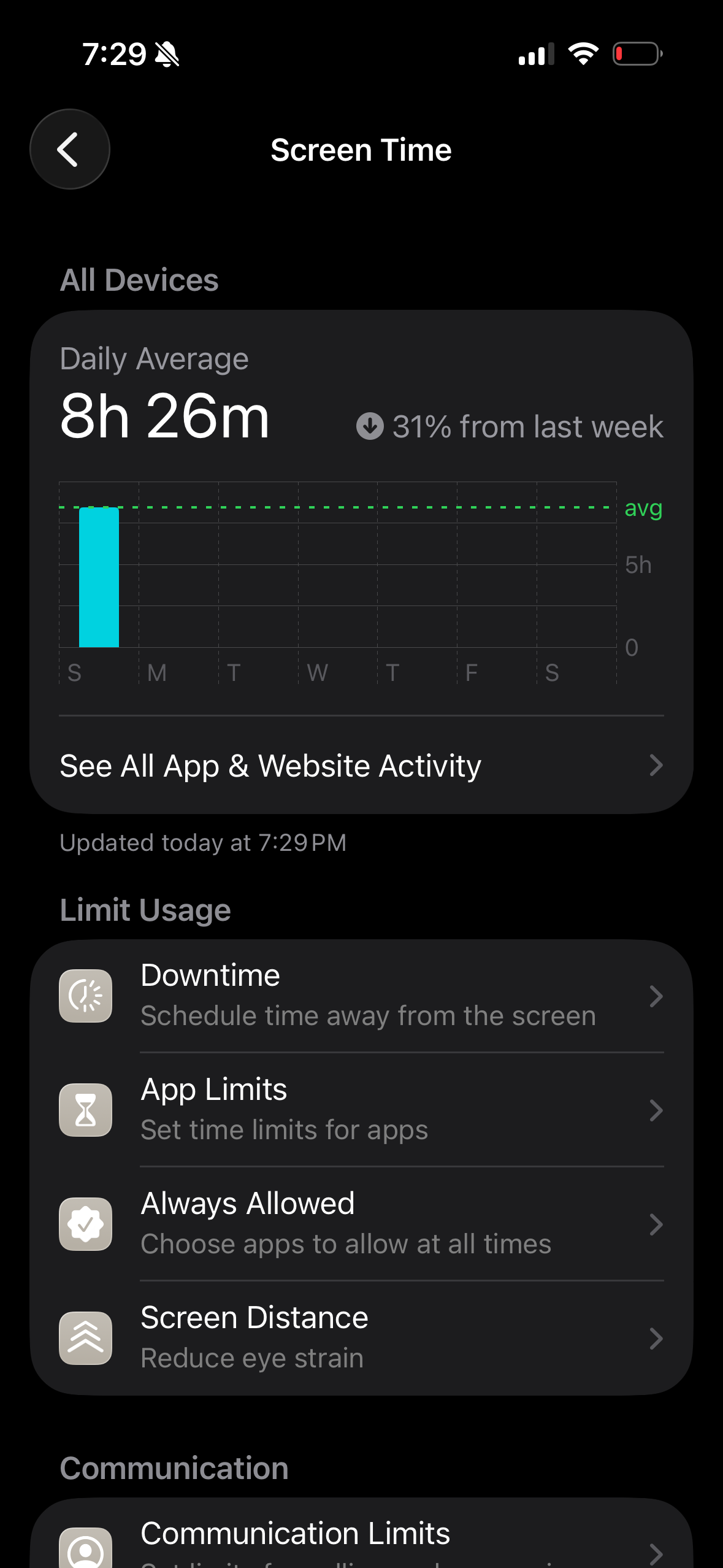
After that, you'll set a Screen Time passcode. This is the code your child must never know.
Block What They Can Change
Without this, a determined kid can undo everything you've set in under a minute.
Settings → Screen Time → Content & Privacy Restrictions → toggle On- Installing Apps → Don't Allow
- Deleting Apps → Don't Allow
- Web Content → Limit Adult Websites
- Account Changes → Don't Allow
- Location Services → Don't Allow Changes
Set App Limits That Actually Stick
A limit without enforcement is just a suggestion. Here's how to make it real.
Screen Time → App Limits → Add LimitPick a category or specific app. Set your daily limit. Then — this part is critical — turn on "Block at End of Limit."
Turn Off the Phone at Night
Downtime is the most impactful single setting for sleep, focus, and mental health.
Screen Time → Downtime → Turn On DowntimeMost families use 9pm–7am. During Downtime, everything except Always Allowed apps is locked. Phone and Messages still work — social, games, and browsers don't.
Control Who They Can Reach
Most parents skip this. Don't — it's the only setting that controls who can contact your child.
Screen Time → Communication Limits- During Screen Time → Contacts Only
- During Downtime → Specific Contacts (family numbers only)
- Review their Contacts app first — you control what's in it
Manage It All From Your Phone
Family Sharing lets you approve or deny time requests without touching their device.
Settings → [Your Name] → Family SharingWhen your child asks for more time, it arrives on your phone as a notification. One tap to approve or deny. You stay in control without being in the room.
Screen Time is live
The foundation is set. Head to Social Media or Messaging to close the remaining gaps.
Why YouTube Is High-Risk
One innocent video can lead to deeply inappropriate content within three clicks. This is by design.
YouTube's algorithm is built to maximize watch time — not to protect children. There is no parent-approved "safe mode" that actually works for unsupervised use.
Block YouTube Completely
Three steps to remove every YouTube access point.
- Delete the app from the device
- App Limit: Screen Time → App Limits → YouTube → 0 min, Block at End
- Website block: Content Restrictions → Never Allow → add youtube.com
All three together close the app, the browser, and prevent reinstalling.
YouTube Kids (If You Want Video Access)
A safer alternative for kids under 12 — with one important caveat.
YouTube Kids app → Settings → Content Level → Preschool or YoungerTurn Search Off in the app settings so your child can only watch curated content, not search freely. Then block the main YouTube app.
Netflix & Disney+ Controls
Set content ratings at the account level — not just the device.
- Netflix: Account → Profile & Parental Controls → set maturity + 4-digit PIN
- Disney+: Profile → Content Rating → lock with PIN
- Create a separate child profile so their viewing history stays separate
Block Streaming via Screen Time
Remove all streaming apps in one move.
Screen Time → App Limits → Entertainment → Block AllOr block specific domains under Content Restrictions → Never Allow: twitch.tv, tiktok.com, youtube.com, reddit.com.
Streaming is under control
YouTube and streaming are the biggest time sink for kids. Blocking or limiting them has an outsized impact on everything else.
The Real Gaming Risks
The problem isn't games — it's what's built into them.
Most mobile games have three hidden dangers: in-app purchases that can rack up charges, built-in chat that connects kids to strangers, and addictive reward loops designed by engineers whose only job is to maximize playtime.
Block In-App Purchases
Do this first. Kids have accidentally spent thousands before parents noticed.
Screen Time → Content & Privacy → iTunes & App Store Purchases- In-app Purchases → Don't Allow
- Always Require your password for any purchase
Disable Multiplayer & Stranger Chat
Stop strangers from connecting to your child through games.
Screen Time → Content & Privacy → Game Center- Multiplayer Games → Don't Allow (for younger kids)
- Adding Friends → Don't Allow
- Nearby Multiplayer → Don't Allow
- Screen Recording → Don't Allow
Set Gaming Time Limits
A daily cap prevents gaming from crowding out everything else.
Screen Time → App Limits → Games → Add Limit1 hour on weekdays, 1.5–2 on weekends is a reasonable starting point. Enable "Block at End of Limit" — otherwise it's just a notification they dismiss. Use Downtime to prevent gaming after dinner.
Roblox: The Hidden Risks
Roblox looks like a kids' game. It's actually an open platform where anyone can build anything — and interact with your child.
Unlike most games, Roblox is a platform with millions of user-created experiences. Many are fine. Some are explicitly sexual or violent. The default settings leave children exposed to chat with strangers and age-inappropriate content.
- Who can chat with me in-app → No one (or Friends)
- Who can message me → Friends
- Who can invite me to private servers → Friends
- Account Restrictions → On (limits to curated content only)
Console Controls
Consoles have their own parental control apps — set them up separately.
- Nintendo Switch: Nintendo Switch Parental Controls app — real-time, excellent
- Xbox: Microsoft Family Safety app — screen time + purchase controls
- PlayStation: Family Management at account.sonyentertainmentnetwork.com
Gaming guardrails set
Purchases locked, chat limited, time capped. Gaming is one of the safest places for kids to have fun — with these in place.
iMessage & FaceTime Basics
Most parents block social media and forget that messaging is already on by default.
iMessage and FaceTime require no app install — they're built into iOS. Start here: turn on Filter Unknown Senders so texts from non-contacts go to a separate folder without notifications.
Settings → Messages → Filter Unknown Senders → OnCommunication Limits
Choose exactly who your child can reach — and when.
Screen Time → Communication Limits- During Screen Time → Contacts Only
- During Downtime → Specific Contacts (family only)
Stranger Safety Rules
Tech controls help — but these four rules are equally important.
- Never respond to unknown numbers
- Tell a parent immediately if a stranger contacts them
- Never share their number in games or apps
- No video calls with anyone not met in person
Group Chats & AirDrop
Group chats are where peer pressure, bullying, and inappropriate content spreads fastest.
- AirDrop: Settings → General → AirDrop → Contacts Only
- Know what group chats your child is in
- Give them an out: "You can leave any group and I'll back you up"
Third-Party Messaging Apps
WhatsApp, Discord, and Telegram are how kids work around iMessage monitoring.
- Discord: App Limit → Social Networking + block discord.com
- Snapchat: Delete + block snapchat.com
- Telegram: Delete + block telegram.org
Messaging is under control
Unknown contacts filtered, limits set, third-party apps blocked. The Big Conversations tab covers the human side of all of this.
How to Introduce the Rules
Parental controls without a conversation breed resentment. Controls with a conversation build trust.
Be honest about why the rules exist and what your child needs to do to earn more freedom. "I want to make sure you have a great childhood" lands very differently than "because I said so."
Setting Rules Without Battles
Kids who help make the rules are far more likely to follow them.
You set the non-negotiables. But giving them input on the edges — bedtime, which apps, weekend limits — builds buy-in. Try asking:
- What time should the phone charge outside your room?
- Which apps feel like a waste of your own time?
- What would you need to show me to earn more access?
When They Push Back
Every kid will push back. Having responses ready makes a big difference.
- "Everyone else has it" — "I'm responsible for you, not everyone else."
- "You don't trust me" — "I trust you. I don't trust the app. They hire engineers to make it addictive — even adults can't stop."
- "I'll use a friend's phone" — "Maybe. That's your choice. My job is still to make good rules here."
Building Trust Over Time
The goal isn't lifetime restrictions — it's gradually earning autonomy.
- Earn access: more privileges come from demonstrated responsibility
- Lose access: hiding things or bypassing controls = reset
- No secrets policy: you know their passwords; they know you might check
- Monthly check-ins: brief conversations about what they're seeing online
When to Get Outside Help
Some situations go beyond what parental controls can fix.
If you're seeing extreme distress when devices are removed, repeated deception, declining grades, sleep problems, or your child withdrawing from family — these are signs worth taking to a professional.
The foundation is communication
Technology changes fast. Your relationship with your child is what stays constant. The conversations matter more than the controls.
Ages 8–10: The Basics
At this age, a phone is a communication device — not a portal to the internet.
- Phone and Messages only — no browser, no social, no games
- Downtime: 8pm–7am, no exceptions
- Phone charges in a common area, not the bedroom
- No front-facing camera apps
Ages 11–13: The Critical Window
This is the highest-risk period. Social media pressure peaks, and the adolescent brain is uniquely susceptible to social comparison.
- No social media — full block, no exceptions
- YouTube blocked or YouTube Kids only
- Messaging: contacts only, reviewed contact list
- Gaming: 1 hr/day max, known friends only
- Phone in kitchen by 8:30pm
Ages 14–16: Earned Trust
Start loosening restrictions based on demonstrated responsibility — not age alone.
- One social platform at a time, private account, you're connected
- Browser access with content filters still on
- Downtime moves to 10pm instead of 9pm
- Monthly check-ins replace constant monitoring
The goal: they're making more decisions independently, and coming to you when things go wrong.
Ages 17+: Transition to Autonomy
Hard blocks shift to conversations. The goal now is habits and judgment — not compliance.
- Remove most content restrictions, keep the relationship open
- Talk about specific platforms you're still concerned about, and why
- Phone out of room at night — still valuable even now
- Help them audit their own usage in Screen Time — make it self-directed
You have the full picture
Every child is different. Use these as starting points, not rigid rules. Questions? hello@corephone.org